Setting up the Teamtailor integration
How to Set Up the Teamtailor Integration with Brainner
In this guide you will know how to fully configure your Teamtailor integration with Brainner.
On Teamtailor
1. Click on ‘Settings’
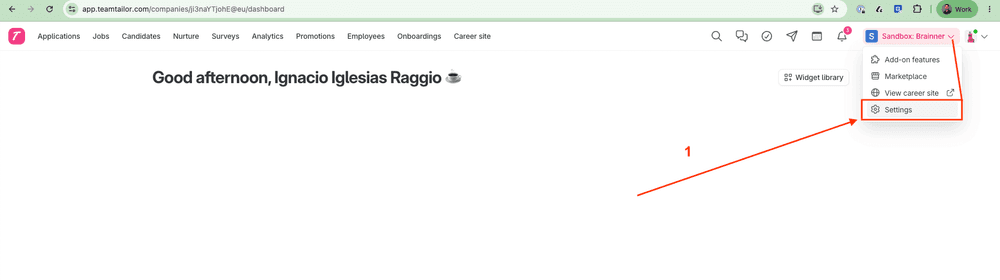
2. In the left menu, click on ‘API Keys' under Integrations
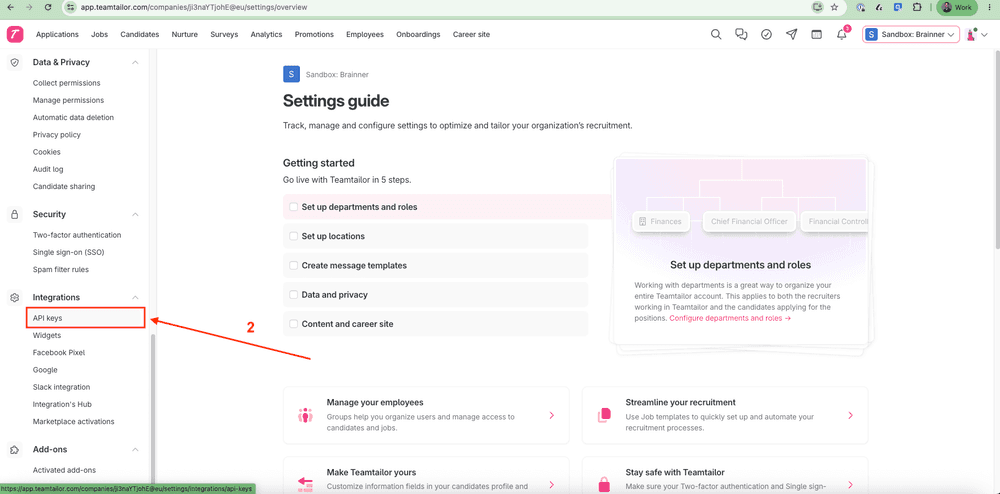
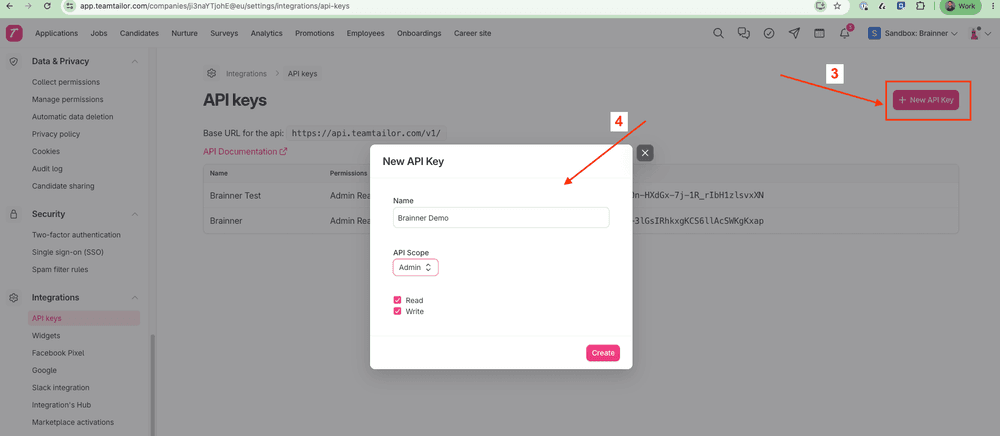
3. Click '+ New API Key’
4. Enter the following information and click ‘Create’:
- API Key name: 'Brainner' to easily identify it
- API Scope: Admin
- Permissions: 'Read' & 'Write' .
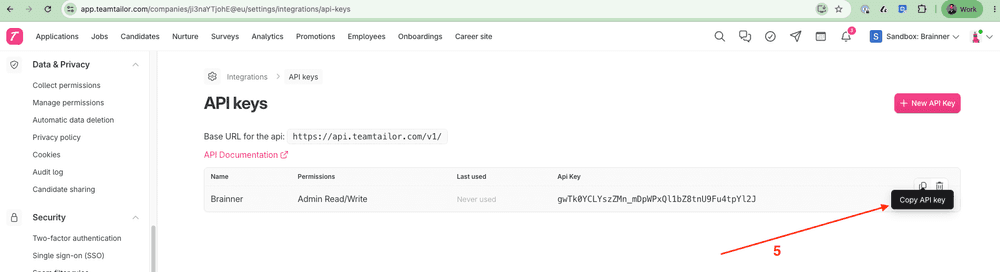
5. Copy the API Key
On Brainner
Integrate with Teamtailor by entering the API Key:
6. Log in to your Brainner account.
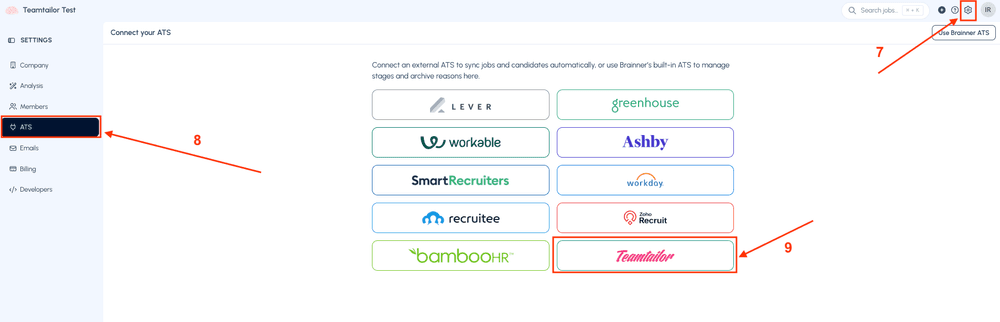
7. Click 'Settings' on the top right corner.
8. Click on the ATS tab.
9. Select Teamtailor from the list of integrations.
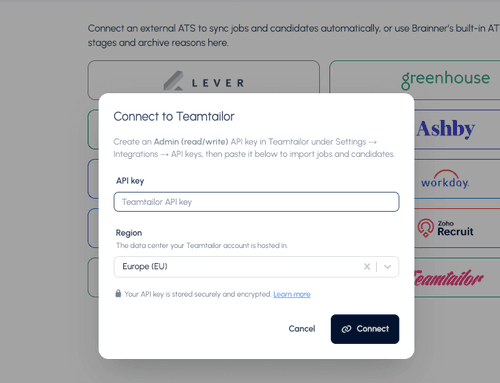
10. Paste the API Key, select your region and click on ‘Connect’
Congratulations! The connection between Brainner and Teamtailor is active!
Check out the following tutorial to get started: Getting started with Brainner
Need Help?
Contact your Customer Success Manager or reach out to our support team at support@brainner.ai.
FAQs
Frequently Asked Questions
Once connected, Brainner pulls your active job positions and candidates directly from Teamtailor. You can run AI-powered resume screening and identity checks on every applicant without leaving your workflow, and all results are synced back to Teamtailor automatically, including stage changes and archive reasons.
The API Key requires Admin scope with Read and Write permissions. Read access allows Brainner to pull your positions and candidates from Teamtailor. Write access allows Brainner to push screening results, advance candidates to the next stage, or archive them based on your automation rules.
Yes. Brainner's Identity Check runs on candidates coming through Teamtailor and verifies that the person behind the resume is who they claim to be. Candidates flagged as High Risk can be automatically archived in Teamtailor using the rejection reason of your choice, keeping your pipeline clean without any manual review.
Once the integration is active, Brainner imports candidates from your Teamtailor positions and evaluates them against your defined criteria. Each candidate receives a score and a detailed evaluation report. You can then filter by score, criteria match, and profile insights to quickly identify your strongest applicants and move them forward in Teamtailor.
Yes. Brainner's automation rules use resume screening results and identity check outcomes as triggers to automatically advance or archive candidates in Teamtailor. For example, you can advance candidates who meet all mandatory criteria and pass the identity check, or archive those flagged as High Risk, all without any manual steps in either platform.
Still have questions?
Book a demo or .