Setting up the Ashby integration
In this guide you will know how to fully configure your Ashby integration with Brainner.
On Ashby
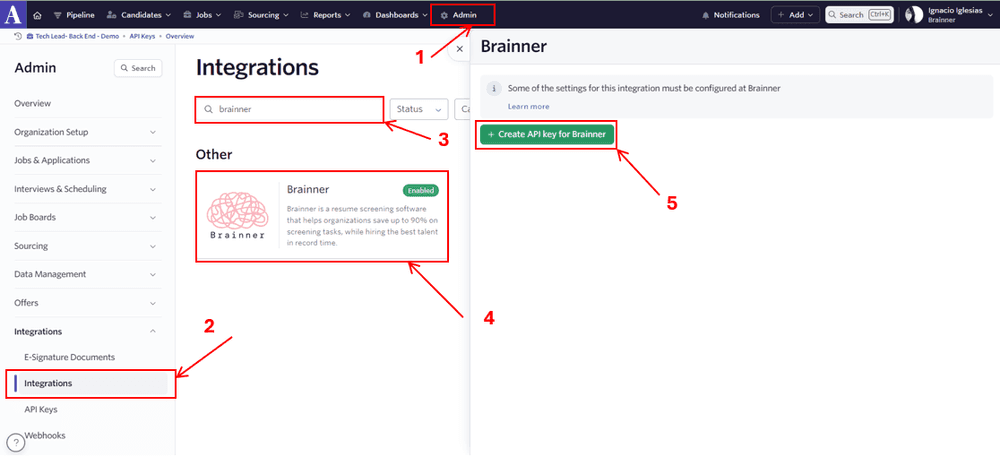
1. Click on ‘Admin’
2. In the left menu, click on ‘Integrations'
3. In the search bar, enter 'Brainner’
4. Click on the Brainner Icon.
5. Click on ‘Create API Key for Brainner’
6. Copy the API Key and store it in a safe place, as you will need to enter it in Brainner.
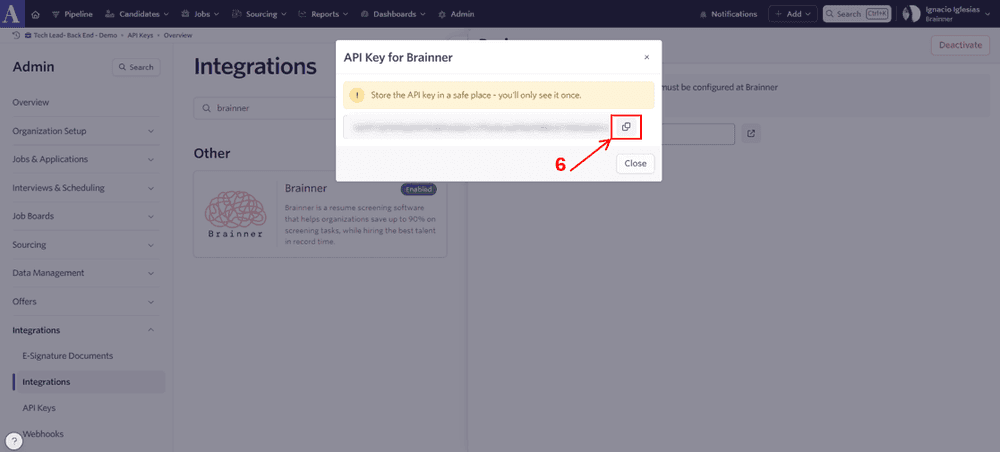
7. After copying the API Key, go to Brainner
On Brainner
Integrate with Ashby by entering the API Key:
8. Log in to your Brainner account.
9. Click 'Settings' on the top right corner.
10. Click on the ATS tab.
11. Select Ashby from the list of integrations.
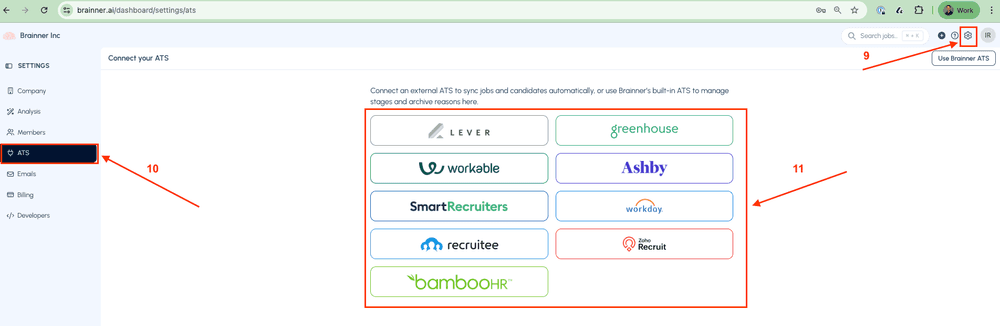
12. Paste the API Key and click on ‘Save’
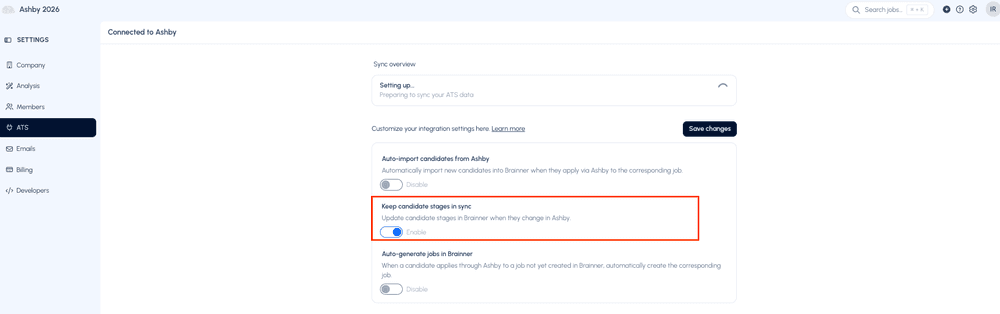
13. In https://www.brainner.ai/dashboard/settings/ats, toggle the option 'Keep candidate stages in sync' to automatically reflect any stage changes made to candidates in Lever directly in Brainner.
14. To send evaluation results to Ashby, see: https://www.brainner.ai/help/article/how-to-send-brainner-results-to-ashby-custom-fields
● Congratulations! The connection between Brainner and Ashby is active!