Setting up the SmartRecruiters integration
In this guide you will know how to fully configure your SmartRecruiters integration with Brainner.
*Note: You must be a team with admin rights in Brainner and Admin rights in SmartRecruiters to set up this integration.
Step by Step Process
1. Log in to your Brainner account.
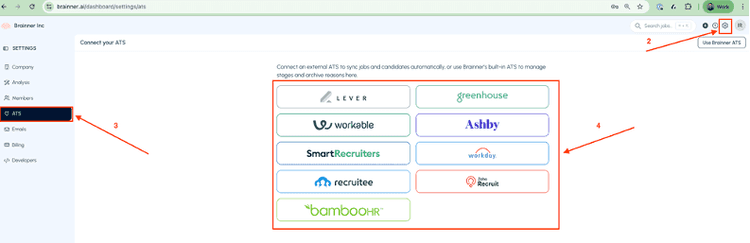
2. Click Settings on the top right corner.
3. Click on the ATS tab.
4. Select SmartRecruiters from the list of integrations.
5. Go to SmartRecruiters platform.
6. In SmartRecruiters got to Settings > Apps & Integrations > Credentials Tab.
7. Click on the "New Credential" button.
8. Click the button New Credential and choose the option API Key'.
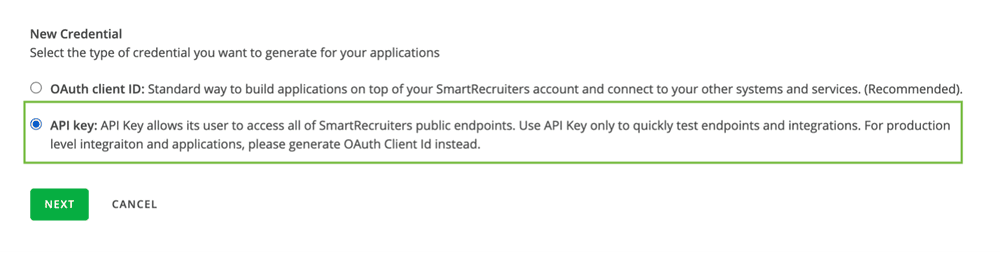
You will need to define the Credential name and the Description of your new API key.
As best practices, we recommend you provide a name and a description that help you and your admins to understand the function and purpose of the API key.
9. Click the Generate button on the bottom of the page once you defined the name and the description.
10. Copy the API key that is displayed on the pop-up.
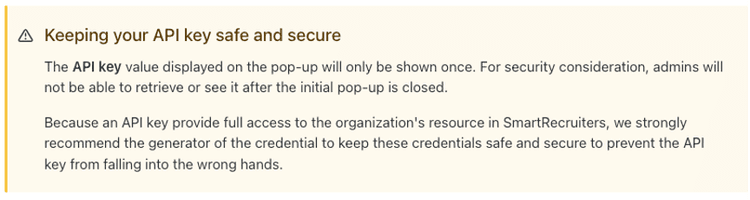
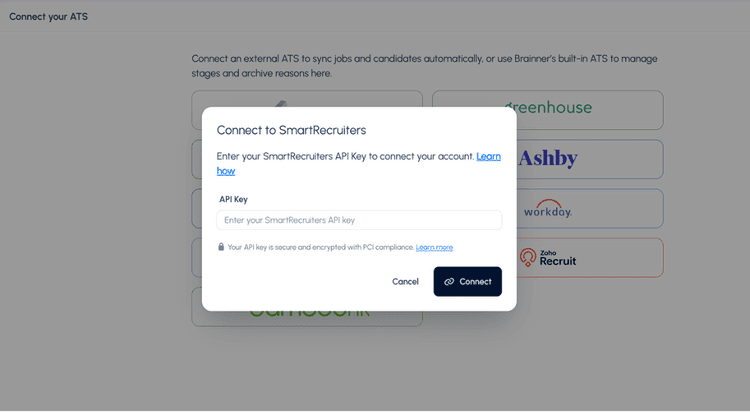
11. Go back to Brainner, enter the API key and click connect.
🎉 You're all set! Your integration is ready, and you can start using Brainner to streamline your candidate screening workflow.
If you have any questions, feel free to reach out to our team at support@brainner.ai