Setting up the Pinpoint integration
How to Set Up the Pinpoint Integration with Brainner
In this guide you will know how to fully configure your Pinpoint integration with Brainner.
On Pinpoint
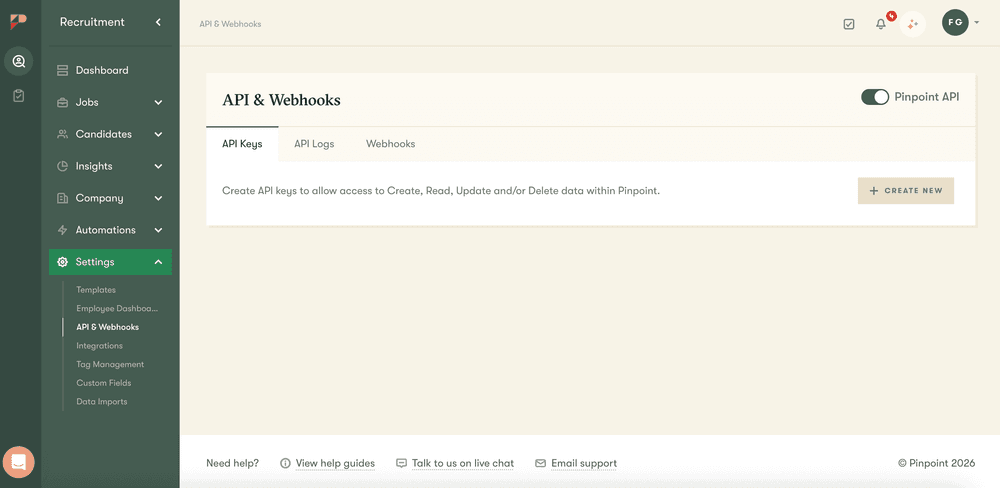
1. Click on ‘Settings’ → API & Webhooks → "+Create New"
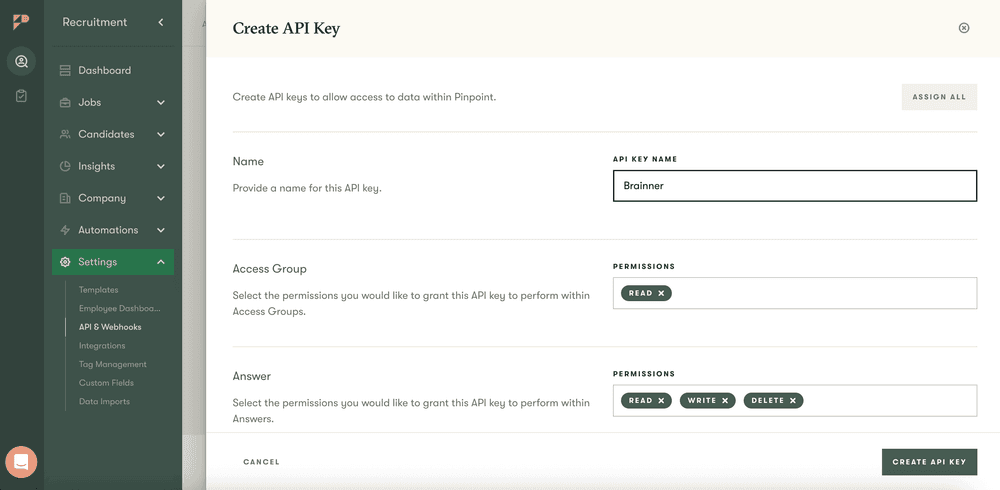
2. Enter a name → "Assign All" permissions → "Create API KEY"
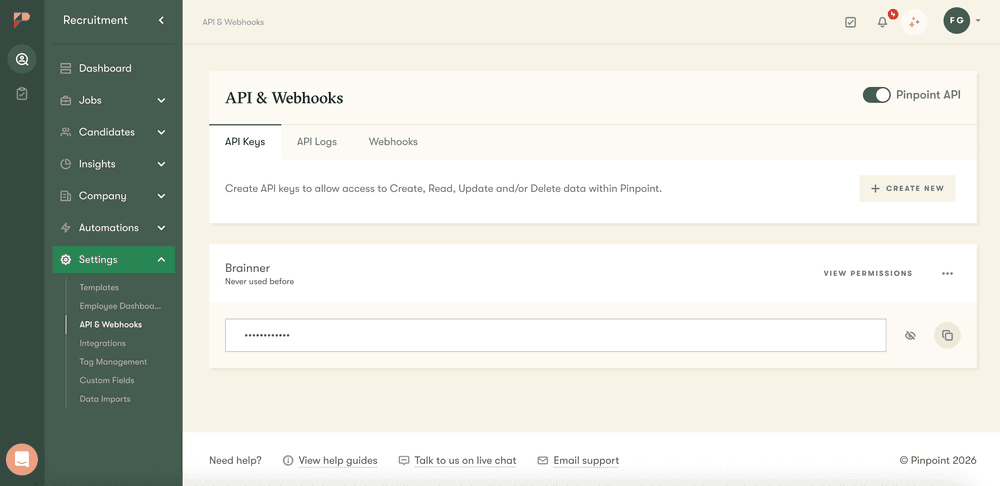
3. Copy API KEY
On Brainner
Integrate with Pinpoint by entering the API Key:
4. Log in to your Brainner account.
5. Click 'Settings' on the top right corner.
6. Click on the ATS tab.
7. Select Pinpoint from the list of integrations.
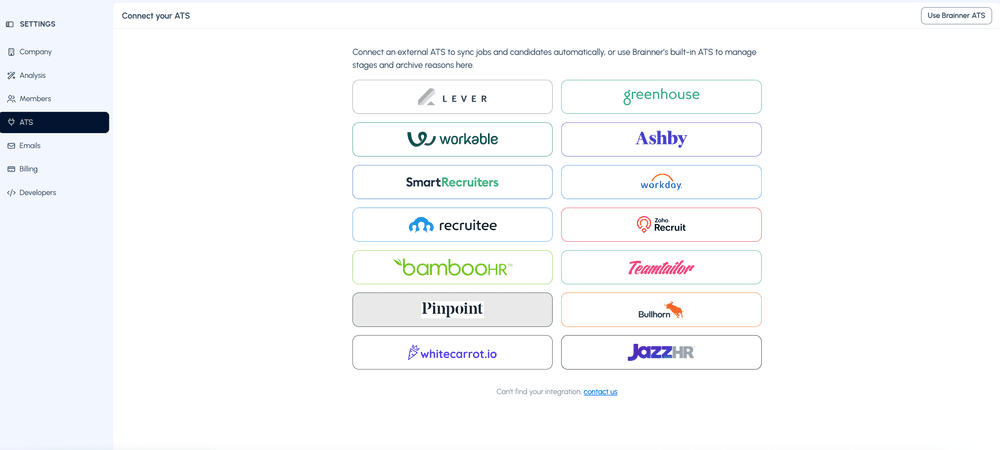
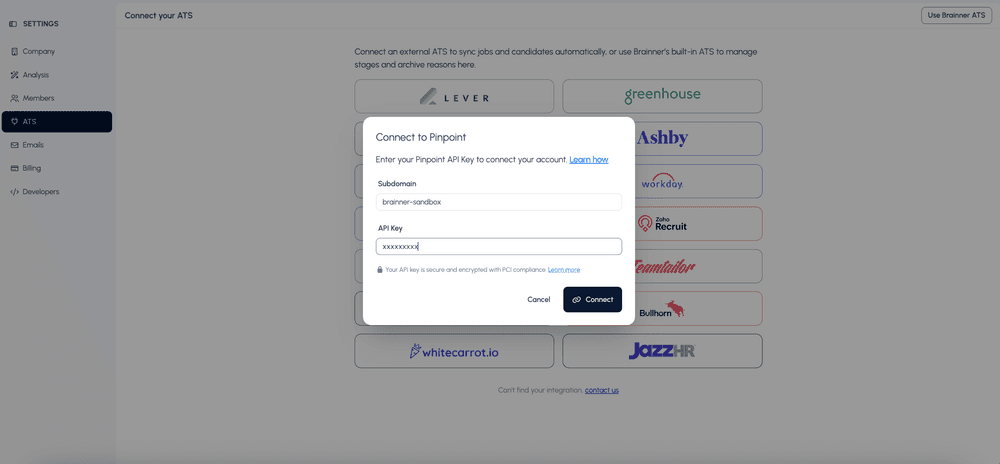
8. Enter your Pinpoint subdomain and your API key, then click “Connect.”
Congratulations! The connection between Brainner and Teamtailor is active!
Check out the following tutorial to get started: Getting started with Brainner
Need Help?
Contact your Customer Success Manager or reach out to our support team at support@brainner.ai.