How to Send Brainner Results to Greenhouse Custom Fields
What You Will Achieve
Once this setup is complete, every time Brainner finishes screening a candidate, the results will be automatically sent to the corresponding custom fields in their Greenhouse profile. This allows your team to filter candidates, trigger hiring rules, generate reports, and make faster decisions without leaving Greenhouse.
Requirements Before You Start
Brainner Access
You need admin or settings access in Brainner to enable the ATS result-syncing options and enter field keys.
Greenhouse Access
You need admin access in Greenhouse to create and manage custom fields under Configure Custom Options.
Step-by-Step Setup
Step 1: Enable Result Syncing in Brainner
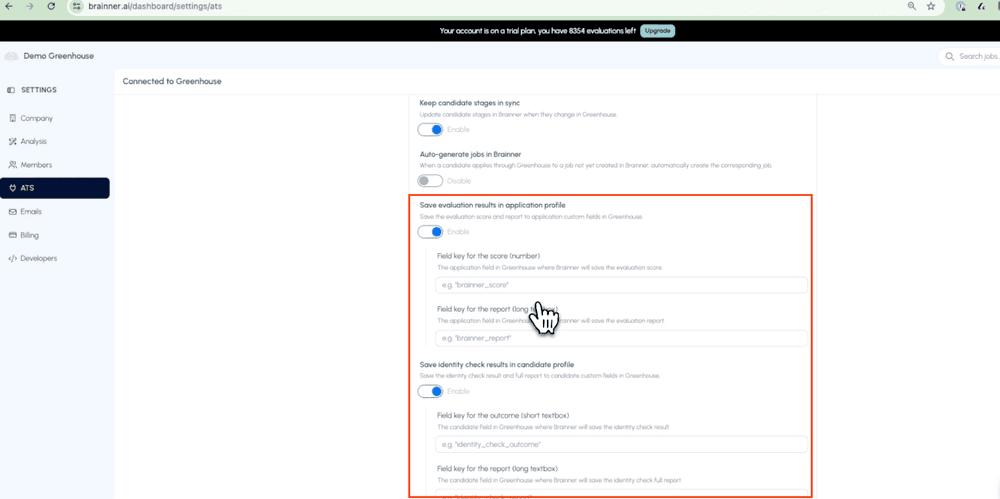
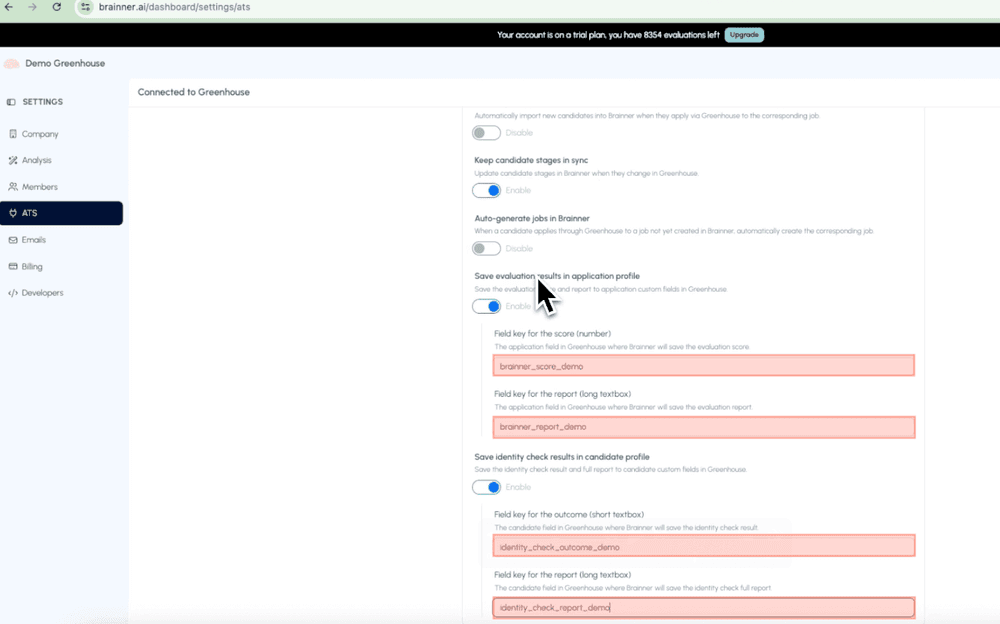
Go to brainner.ai/dashboard/settings/ats and enable the options: "Save evaluation results in application profile" and "Save identity check results in candidate profile." This is where you will paste the field keys after creating them in Greenhouse.
*Note: You can decide which information to send.
Step 2: Create the Evaluation Application Fields in Greenhouse
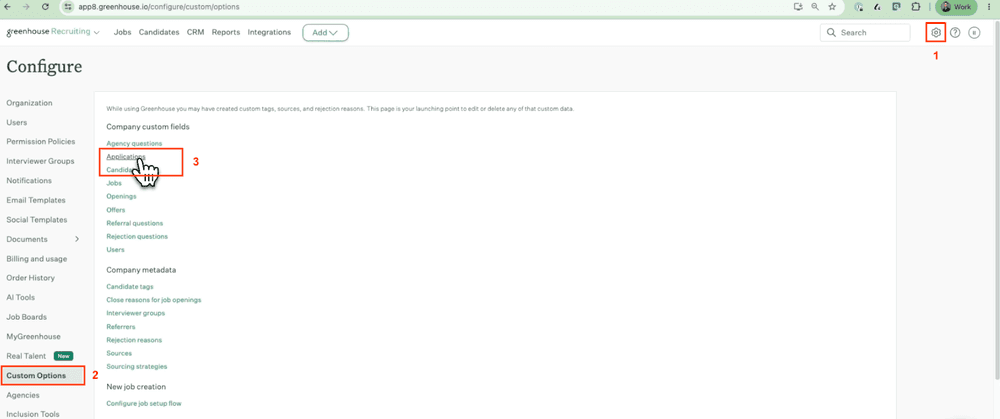
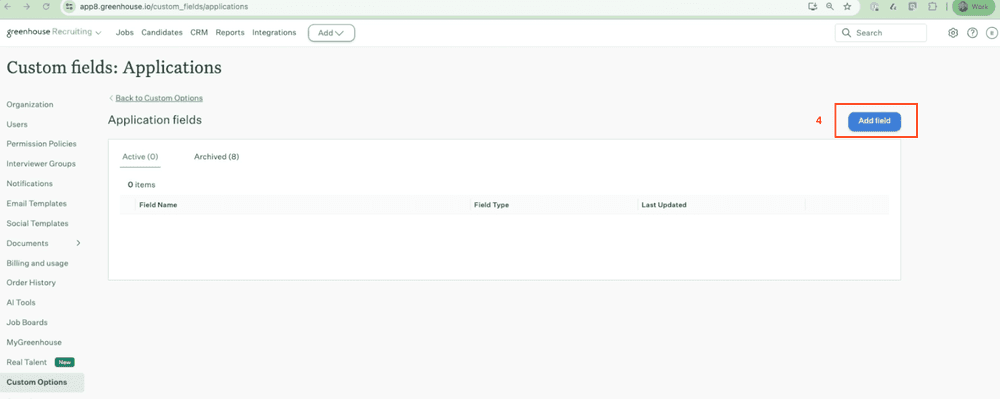
In Greenhouse, go to Configure, then Custom Options, then Application Fields. Create the new fields:
Resume Screening
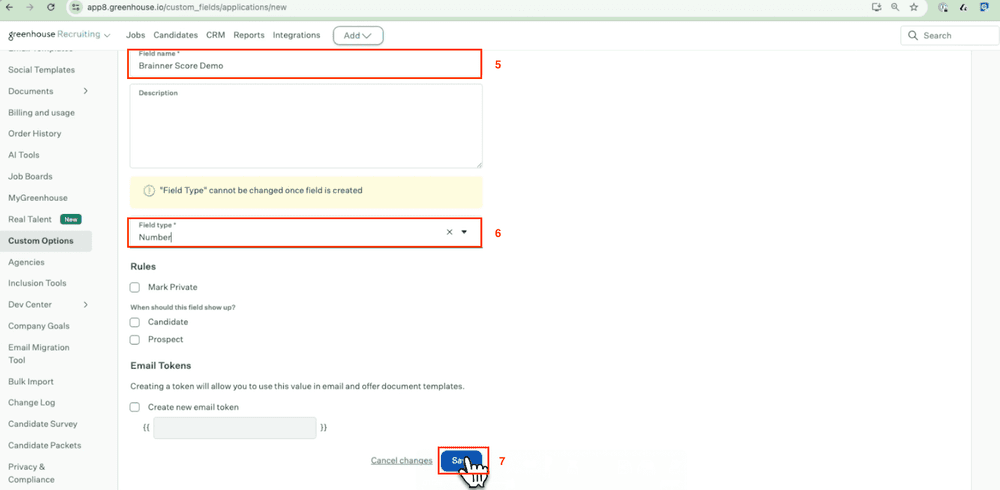
- Brainner Score - set the field type to Number.
- Brainner Report - set the field type to Long Text.
*Important note: use application fields for resume screening, as it is related to each application.
In Greenhouse, go to Configure, then Custom Options, then Candidate Fields. Create the new fields:
Identity Check
- Brainner Identity Check Outcome - set the field type to Short Text. This field will display one of three values: No Issues, Flagged, or High Risk.
- Brainner Identity Check Report - set the field type to Long Text.
*Important note: use candidate fields for resume screening, as it is related to the candidate.
Step 3: Paste Custom Fields URL in Brainner
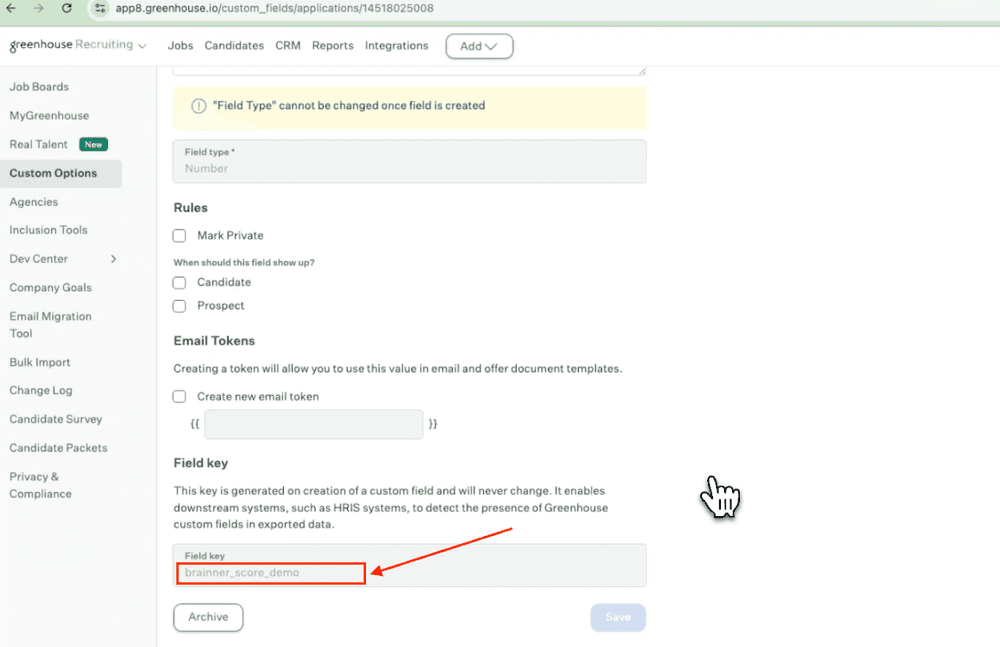
After saving each field, copy and paste each field key into the matching fields in Brainner..
Step 4: Save and Verify
Once all field keys are entered in Brainner, click Save Changes. To verify, import new candidates in Brainner, once processed, open the candidate and application profiles in Greenhouse and confirm the custom fields are visible and populated with Brainner data.
Enabling or Disabling Syncing Independently
The evaluation results and identity check results can be toggled independently. If you only want to sync one of them, simply disable the other option in Brainner's ATS settings before saving. You can update this at any time.
What You Will See in Greenhouse
Once configured, each candidate profile in Greenhouse will display the Brainner Score, the full evaluation report, the identity check outcome, and the identity check report as separate custom fields. You can use these to build filters, apply hiring rules, and standardize your screening decisions across your pipeline.
Need Help?
Contact your Customer Success Manager or reach out to our support team at support@brainner.ai.
Frequently Asked Questions
Learn more about Brainner
In Greenhouse, application fields are tied to a specific job application, while candidate fields are tied to the candidate profile across all applications. Brainner sends evaluation results (score and report) to application fields, since they are job-specific. Identity check results go to candidate fields, since they relate to the person regardless of the role.
No. Evaluation and identity check fields are independent. If you only want to sync evaluation results, create only the Brainner Score and Brainner Report application fields and disable the identity check option in Brainner. You can add the remaining fields later if needed.
The Brainner Identity Check Outcome field will display one of three values: No Issues, Flagged, or High Risk, depending on the result of the identity verification performed by Brainner.
No. The sync only applies to candidates screened after the configuration is saved. To see Brainner data in Greenhouse, import and process new candidates following the setup.
First, double-check that the field keys copied from Greenhouse are correctly pasted into each corresponding field in Brainner, and that you clicked Save Changes. If the issue persists, contact your Customer Success Manager or reach out to our support team at support@brainner.ai.
Still have questions?
Book a demo or .