How to Set Up Automation Rules Using Identity Check Results
What You Will Achieve
Once this setup is complete, Brainner will automatically act on every identity check result as soon as it is ready. High Risk candidates can be archived immediately under the rejection reason of your choice, while candidates who pass can be advanced to the next stage without any manual intervention. Combined with resume screening automations, this creates a single workflow that handles both fit and fraud detection on autopilot.
Requirements Before You Start
Brainner Access
You need admin or settings access in Brainner to create and manage automation rules within a position.
Identity Check Enabled
The Identity Check feature must be active on your Brainner plan. If you are unsure, contact your Customer Success Manager.
Step-by-Step Setup
Step 1: Go to the Automations Tab
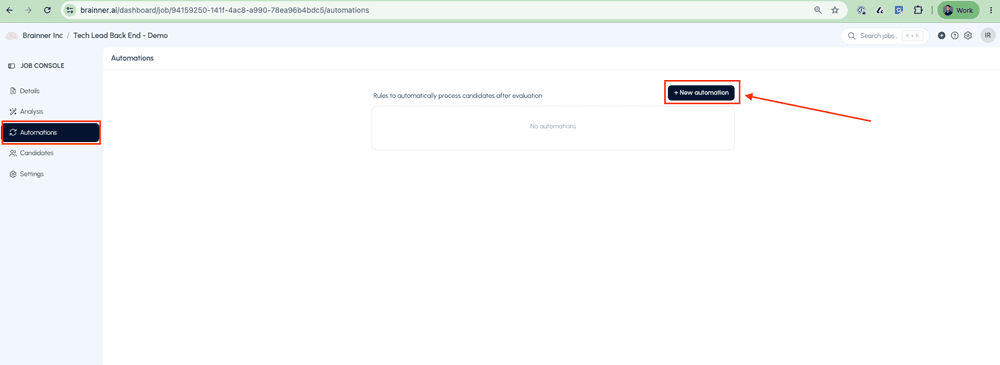
Open the job position in Brainner and navigate to the Automations tab. Click on it to start creating a new rule.
Step 2: Name Your Automation Rule
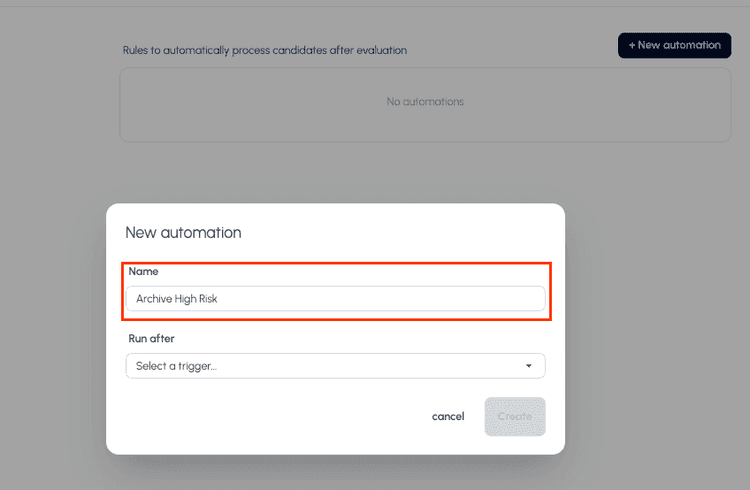
Enter a name for the rule. This will serve as your reference when managing multiple automations within the same position.
Step 3: Select the Identity Check Trigger
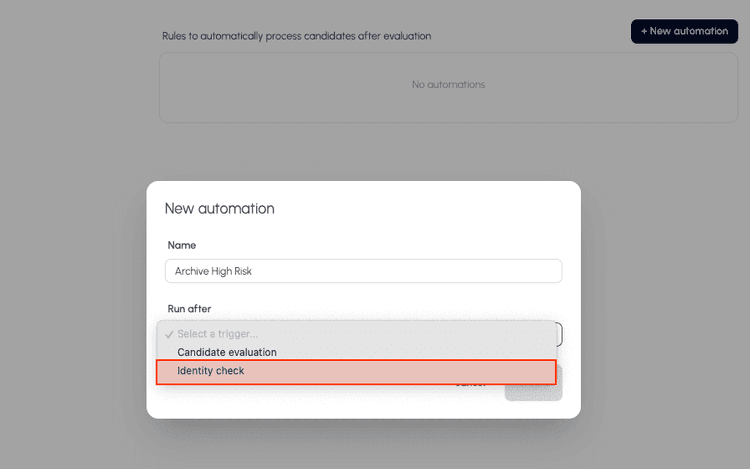
When configuring the trigger, you will see two options: candidate evaluation, which is based on resume screening results such as score and criteria, and identity check, which is based on the outcome of the identity verification. Select Identity Check as the trigger for this rule.
Step 4: Set Up an Automation Rule
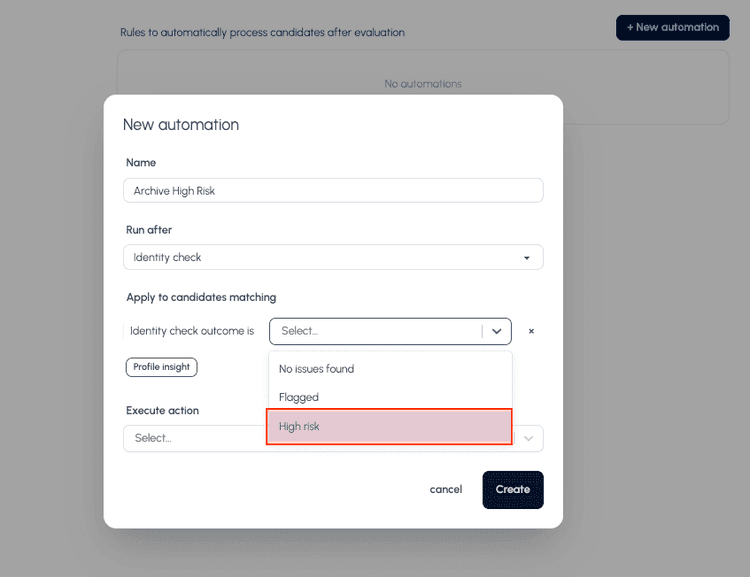
Select the identity check outcome and set the condition. For this example, we will archive candidates flagged as High Risk. Then choose the action Archive and select the archive reason that best fits your workflow. The available reasons will depend on your ATS configuration and may include options such as Underqualified, Spam, Fake Applicant, or Other. Once saved, any candidate flagged as High Risk will be automatically archived using that reason.
You can also create a rule to advance candidates automatically. For example, set the condition to No Issues and choose the action Advance to move verified candidates to the next stage in your pipeline without any manual step.

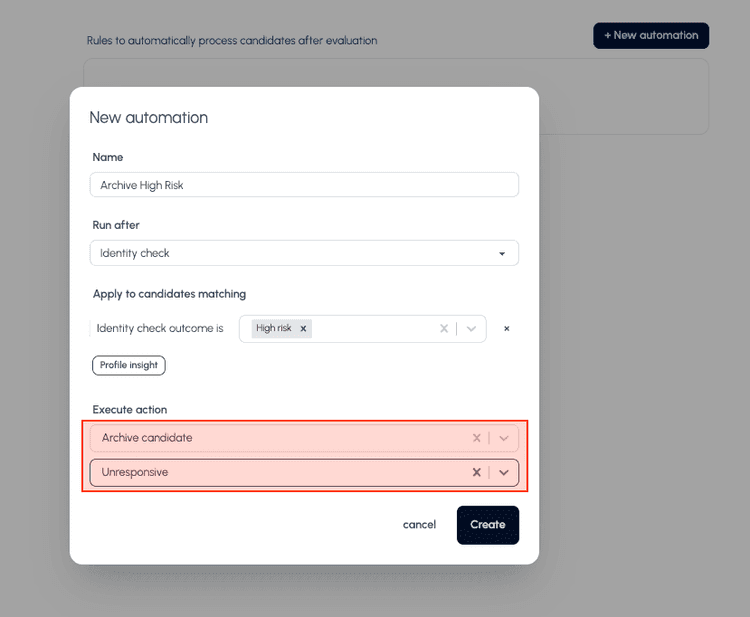
Step 5: Set Up a Second Rule (Optional)
Create a second rule using the identity check trigger.

Step 6: Manage Rule Order
Automation rules run in the order they are listed. In this example, the High Risk archive rule runs first. If that condition is not met, Brainner moves to the next rule. You can reorder rules at any time by dragging them into the priority sequence that fits your process. If you also have resume screening rules, you can decide whether they run before or after the identity check rules.
Combining Identity Check and Resume Screening Rules
Brainner allows you to mix triggers within the same automation setup. For example, you can archive candidates who score below a threshold on resume screening and also archive those flagged as High Risk on identity check, all within the same position and managed from the same Automations tab. Rule order determines which condition is checked first.
Need Help?
Contact your Customer Success Manager or reach out to our support team at support@brainner.ai.
Frequently Asked Questions
FAQs
Yes, you can use the overall identity check outcome: No Issues, Flagged, or High Risk.
Yes. When an automation rule triggers an action, the change is reflected in your ATS automatically. If a candidate is archived, they will be dismissed in your ATS under the selected reason. If a candidate is advanced, they will move to the corresponding stage. No manual update is needed on either platform.
Yes. You can set up multiple rules within the same position, each with a different trigger condition and action. Brainner evaluates them in the order they are listed and applies the first rule whose condition is met. If no condition is met, no action is taken.
Automation rules run automatically as soon as the identity check result is completed for a candidate. There is no delay and no manual trigger needed. If you have multiple rules set up, Brainner evaluates them in the order they are listed and applies the first rule whose condition is met.
No. Automation rules only apply to candidates whose identity check is completed after the rule is set up. Candidates that were already evaluated before the rule was created will not be affected retroactively. If you want to act on previously evaluated candidates, you can do so manually using the identity check filters.
Yes. Automation rules based on identity check results work independently of resume screening. You can enable the automatic identity check flow on a position without defining screening criteria and still apply automation rules to act on the results.
Still have questions?
Book a demo or .